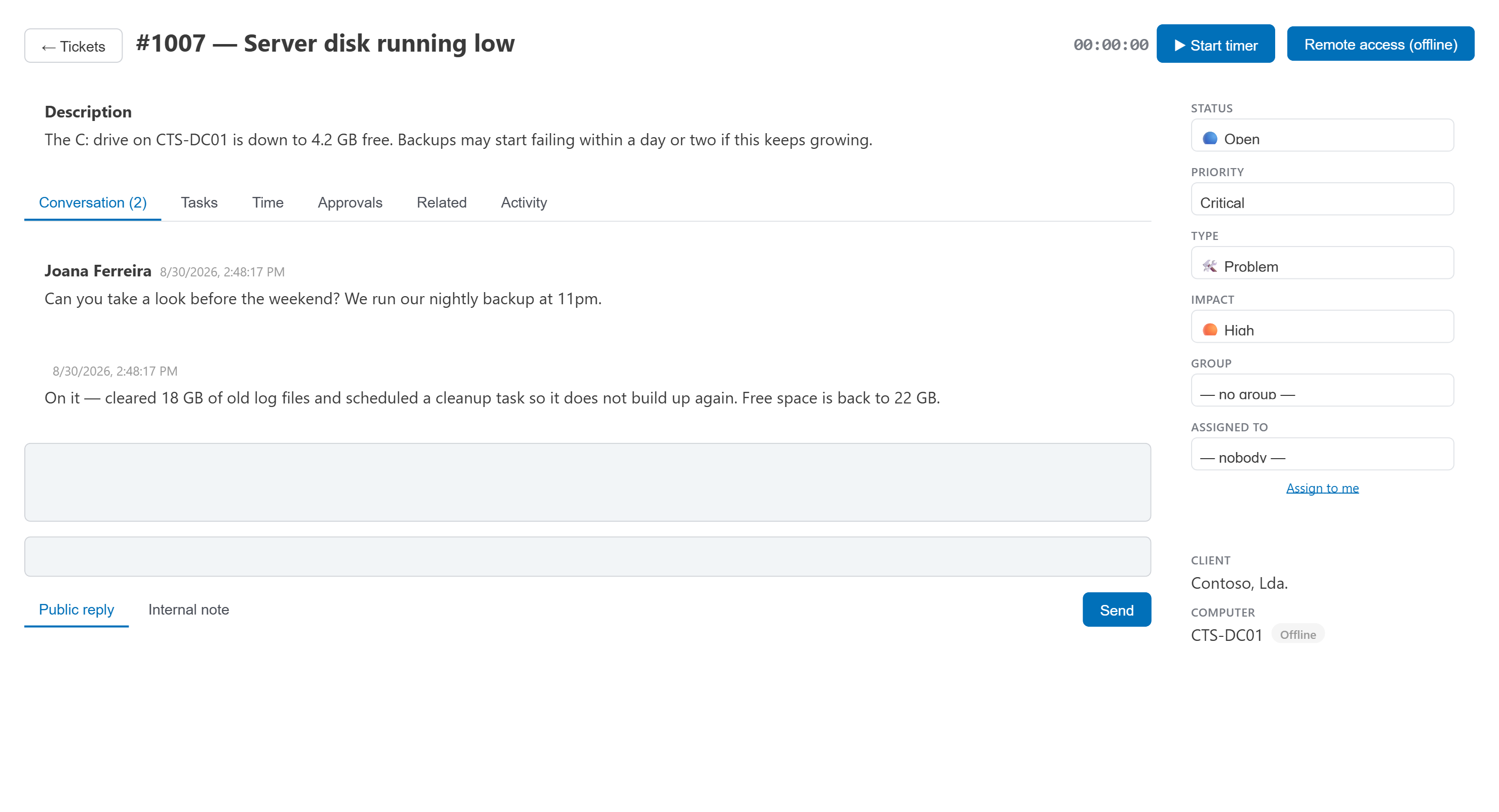
What's included
- Priority and impact set the response and resolution SLA clocks automatically — no manual timers to remember.
- Approvals, tasks and time tracking live on the same ticket, not a separate module.
- Clients see and reply to their own tickets from the portal, signed in with their Microsoft account.
- Turn any alert into a ticket in one click, with the machine already linked.
- Time that bills itself. Billable time logged on a ticket counts against the client's hours bank, and the ticket's Time tab says which contract it counts against.
- On-site visits from the ticket. Schedule visit books one or more technicians and asks the client to confirm in the portal; finishing the visit adds the time on site and the travel to the ticket, with the client's signature — see on-site visits.
- Descriptions with formatting and screenshots. New ticket in the app, and a new support request in the portal, take bold, italic, lists and images pasted or dropped into the description, which is cleaned on the server before it is saved.
- Remote access from the ticket. When a ticket has a computer, a Remote access button next to it — and at the top of the ticket — opens the same menu as the computer's page: the SL App session, Remote Desktop through the agent or TeamViewer. See remote access.
- Shown to the client every month. The tickets with their SLA compliance, the satisfaction ratings, the time logged and the on-site visits are all in the monthly client report.
Tickets & SLAs
Priorities, approvals, tasks and time tracking, with response and resolution SLA clocks on every ticket.